Evaluation & Deployment Guide

Start safely with the built-in printer simulator—then deploy to your network.

You do not need physical printers or a lab VLAN to evaluate PrintMarshal. The repository includes cmd/pm-sim, an SNMP + IPP/IPPS + eSCL printer simulator backed by real walk fixtures so you can test discovery, security assessments, and dry-run configuration changes on loopback first.

01 · Prerequisites & Toolchain

Choose your build or runtime environment.

Local Source BuildRecommended for eval

Builds both the server (bin/printmarshal) and the printer simulator (bin/pm-sim) with the React web console embedded inside the Go binary.

  • Go 1.27.3+ (required by go.mod)
  • Node.js 20+ & npm (used only at build time by make web)
  • macOS or Linux (zero runtime dependencies once built)
Docker ContainerSingle container

Multi-stage Dockerfile compiles the UI and Go binary inside Alpine build stages—no local Go or Node installation required.

  • Docker Engine with BuildKit (or Docker Desktop / OrbStack)
  • Build stages: node:22-alpine (UI) + golang:1.27-alpine (server)
  • Runtime image: a minimal Alpine image (the RUNTIME_IMAGE build argument) running as the non-root user pm (UID 10001)

Database & NetworkSQLite or PostgreSQL

Uses embedded pure-Go SQLite (WAL mode) out of the box, or connects to external PostgreSQL 14+ for production persistence.

  • Console/API: 8080/tcp (configurable via PM_LISTEN)
  • Simulator eval: Loopback (127.0.0.1) only
  • Fleet subnets: Outbound 161/udp (SNMP), 631/tcp (IPP/IPPS), 80/443/9100/tcp
02 · Recommended Evaluation Route

Evaluate on loopback with pm-sim in three steps.

This path starts a simulated network printer on 127.0.0.1 speaking SNMPv2c and IPP, then launches PrintMarshal pointed at those local ports. No packets leave your machine.

Step 1 · Clone & Build

Build the embedded UI, server, and simulator

Compiles web/dist and embeds it into bin/printmarshal alongside bin/pm-sim.

Terminal 1 — Build
git clone https://github.com/printmarshal/printmarshal.git
cd printmarshal
make web && make build
Step 2 · Start the Printer Simulator

Run pm-sim on loopback ports

Replays testdata/fixtures/generic-laser.snmp (or choose ricoh-imc3010.snmp, hp-m283fdw-enterprise.snmp, or konicaminolta-bizhub-c300i.snmp) over SNMP and IPP.

Terminal 1 — Start pm-sim
./bin/pm-sim \
  -fixture testdata/fixtures/generic-laser.snmp \
  -snmp 127.0.0.1:10161 \
  -ipp  127.0.0.1:10631
Step 3 · Start PrintMarshal

Launch the console pointed at the simulator

Creates an encrypted SQLite database in ./data, seeds the admin account, and maps SNMP/IPP probes to your simulator ports.

Terminal 2 — Start PrintMarshal
export PM_SECRET_KEY="$(openssl rand -base64 32)"
export PM_ADMIN_PASSWORD="change-me-admin-123"

PM_LISTEN=127.0.0.1:8080 \
PM_DATA_DIR=./data \
PM_SNMP_PORT=10161 \
PM_IPP_ENDPOINTS='http://%s:10631/ipp/print' \
PM_DISCOVERY_ENABLED=false \
PM_TRAP_ENABLED=false \
  ./bin/printmarshal

Prefer an automated CLI walkthrough? Run ./scripts/e2e.sh to execute the full discovery, polling, and assertion sequence via the REST API.

03 · First Successful Outcome

What you will see in your first three minutes.

Open http://127.0.0.1:8080 and sign in as admin with your PM_ADMIN_PASSWORD. Follow these four steps in the UI to verify every core workflow:

  1. 1. Discover the simulated printer (/discovery): Enter target 127.0.0.1, uncheck zero-config multicast, and click Start scan. PrintMarshal discovers Acme LaserPrint 4200dn (serial ACM4200X0917) with snmp and ipp capabilities, supply levels, trays, and page counters.
  2. 2. Assess security posture (/security): Under Security → Compliance, click Assess… with the built-in Baseline policy. You will see 4 / 5 readable items pass, SNMP v1/v2c enabled fail (High severity), and 9 unknown items explicitly listed as not readable over standards SNMP/IPP.
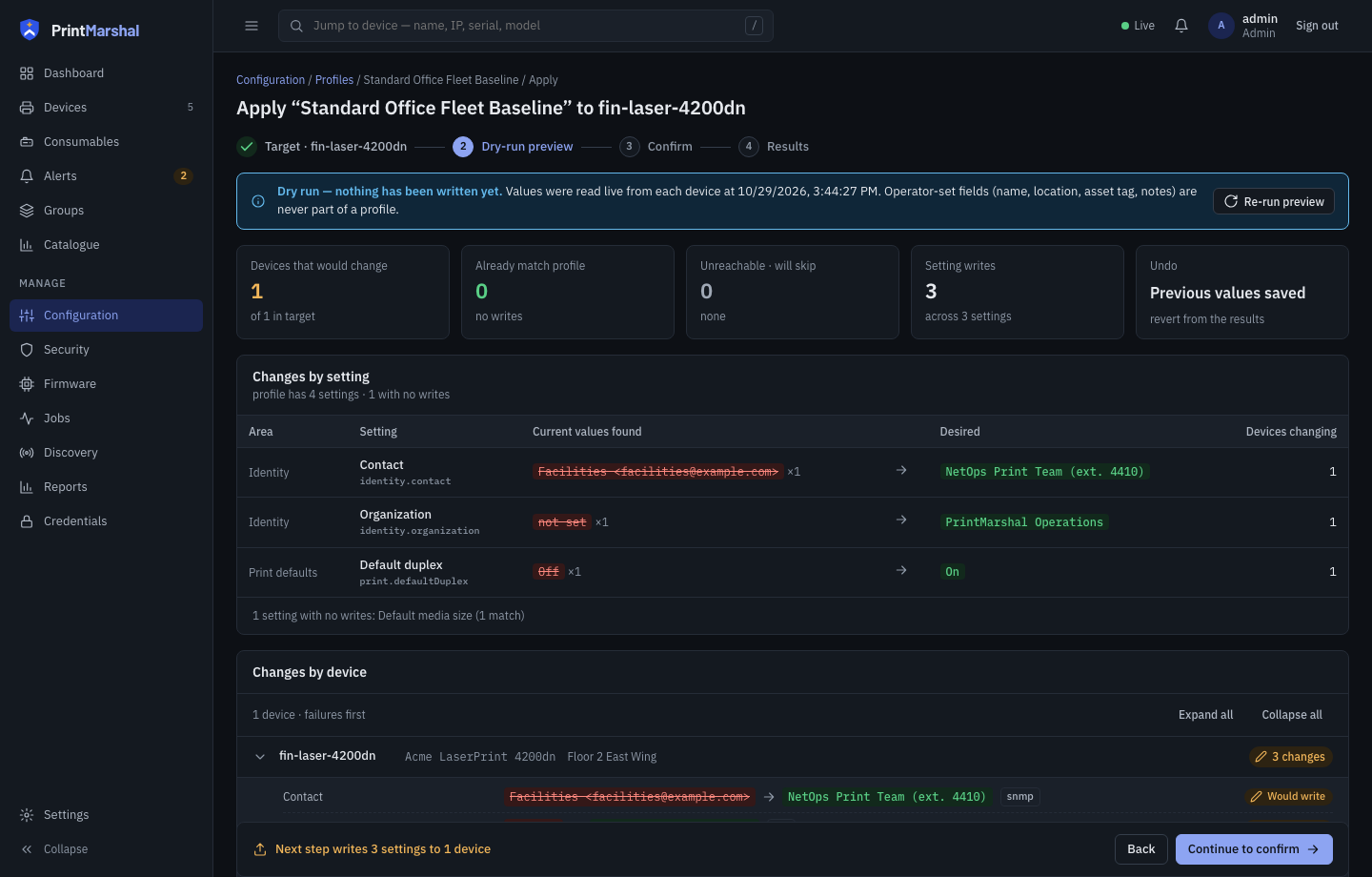
  3. 3. Read & preview configuration (/profiles): Add a write-enabled credential (Credentials → Add credential, SNMP community public, purpose both). Create a profile setting Organization or Default duplex, click Apply, and run the Dry-run preview.
  4. 4. Confirm & inspect verified write history: Confirm the write. PrintMarshal writes the change to pm-sim, re-reads the setting back, and records ✓ verified in the device's Write history card with a one-click Revert… button.
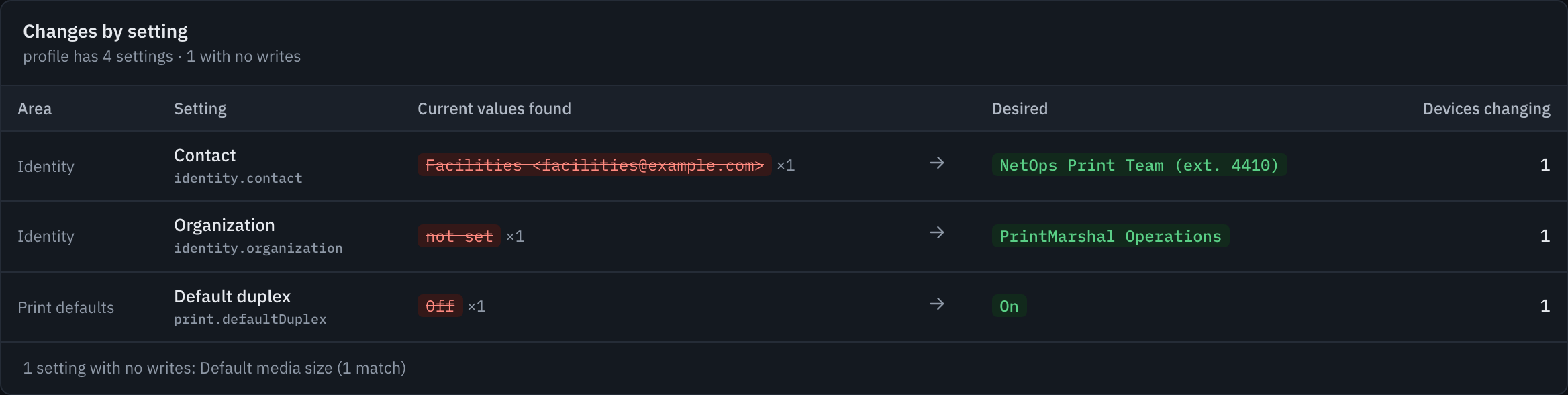
/profiles/:id/apply — First dry-run preview outcome
Dry-run preview screen showing 1 device that would change and 2 setting writes. Focused view of Changes by setting in dry-run preview.
04 · Container Quick Start

Run PrintMarshal in a single Docker container.

For a persistent self-hosted instance backed by SQLite on a Docker volume, build the image from the repository and pass PM_SECRET_KEY and PM_ADMIN_PASSWORD.

Docker build & run (SQLite volume at /data)
docker build -t printmarshal:local .

docker run -d \
  --name printmarshal \
  -p 8080:8080 \
  -p 1162:1162/udp \
  -v printmarshal-data:/data \
  -e PM_DATA_DIR=/data \
  -e PM_SECRET_KEY="$(openssl rand -base64 32)" \
  -e PM_ADMIN_PASSWORD="replace-with-strong-password" \
  --restart unless-stopped \
  printmarshal:local

Note: If you want passive mDNS/SSDP/WS-Discovery multicast listeners inside Docker on Linux, run with --network host on the printer VLAN or use active CIDR discovery scans across routed subnets.

05 · Advanced Production Deployment

Production topologies, environment variables, and backup rules.

Expand any section below for production configurations, or consult the authoritative Installation and Deployment Wiki.

Docker Compose + PostgreSQL 16 (deploy/docker-compose.yml)

For production deployments that prefer external PostgreSQL over embedded SQLite, use deploy/docker-compose.yml. Remember that PrintMarshal runs in-process schedulers and job workers—always run a single active server replica (replicas: 1).

Start with Docker Compose
export PM_ADMIN_PASSWORD="replace-with-strong-password"
export PM_SECRET_KEY="$(openssl rand -base64 32)"
export POSTGRES_PASSWORD="replace-with-db-password"

docker compose -f deploy/docker-compose.yml up -d
Kubernetes Helm Chart (deploy/helm/printmarshal) & systemd Service

The repository ships both a Helm chart (deploy/helm/printmarshal) with liveness/readiness probes (/healthz, /readyz) and Prometheus annotations, and a hardened Linux systemd unit (deploy/systemd/printmarshal.service).

Helm install
helm upgrade --install printmarshal ./deploy/helm/printmarshal \
  --namespace printmarshal --create-namespace \
  --set secret.adminPassword="replace-with-strong-password" \
  --set secret.secretKey="$(openssl rand -base64 32)"
Essential Environment Variables & Backup / Restore Rules
Variable Default Purpose
PM_SECRET_KEY <data-dir>/secret.key 32-byte key (64 hex chars or base64) used for AES-256-GCM encryption of stored credentials and private keys. Back this up with your database.
PM_ADMIN_PASSWORD Random (logged once) Initial password for the seeded admin user when starting on an empty database.
PM_LISTEN :8080 HTTP/HTTPS listen address for the embedded web UI and REST/WebSocket API.
PM_DB_DRIVER / PM_DB_DSN sqlite Set PM_DB_DRIVER=postgres and PM_DB_DSN=postgres://… to use PostgreSQL instead of SQLite.
PM_TLS_CERT / PM_TLS_KEY unset (HTTP) PEM certificate and private key paths for native HTTPS termination (enables Secure session cookies automatically).
PM_DISCOVERY_CIDRS unset Comma-separated CIDRs/ranges scanned on schedule when PM_DISCOVERY_ENABLED=true.

Hot SQLite Backup: Admins can download a consistent SQLite snapshot via POST /api/system/backup (VACUUM INTO). Always archive your PM_SECRET_KEY (or secret.key file) alongside database backups; without the matching key, encrypted device credentials cannot be decrypted on restore.